Manual
How it actually
works.
Every feature that exists, written from the code that implements it. Where something is not built, this page says so rather than leaving you to find out at the wrong moment.
ConnectThe CRMWebhooksFifteen answers
Getting started
What Connect is
A card that is never out of date, a scanner for the paper ones, and a record of what was actually said.
ObjectiveDone Connect is a personal networking app. It holds the cards you hand out, the contacts you collect, and the things you would otherwise forget about them — where you met, what was said, and what you promised.
It is built around one observation: the exchange is easy and the follow-up is where it falls apart. So the card is a permanent web address rather than a file, the scanner turns a paper card into a contact in one go, and every contact can carry notes, memories and voice notes that make sense of it three weeks later.
- Your cards. As many as you have roles. Each one has its own permanent link and its own QR code.
- Your contacts. Typed, scanned, imported from your phone book, or handed over by someone who filled in the form on your card page.
- Your memory of them. Notes, tags, dated memories with a place and an occasion, and voice notes that can be turned into text with a summary and a list of action items.
- The Concierge. Ask a question in plain language and get an answer drawn only from what you actually captured.
Connect and the CRM are two products
The CRM is bought separately by the organisation that uses it. Paying for Connect does not include it, and holding a CRM seat does not include Connect. They share one sign-in, which is a convenience and not a bundle. See CRM.
Your first card
The app asks for a card before it lets you in, on purpose.
After you sign in, Connect shows you three materials and then the card editor. There is no way past that step, because an address book with nothing to hand back is half a product — and the card takes about a minute.
- Pick a material. It changes how the card looks, not what it can do.
- Fill in your name, what you do, and your company. A photo and a company logo are optional; the logo finder will usually find your company’s own artwork from its website.
- Add the ways you want to be reached. The first row of each of the first two groups is what appears on the card face — everything else lives on the card’s web page.
- Save. The card is stored in your account immediately and its link works from that moment.
You can edit a card at any time afterwards. An edit reaches everybody you have already given the link to, because the page is rendered fresh on every open rather than being a file somebody downloaded.
Signing in
Email and a one-time code, or email and a password. One phone at a time.
Enter your email. If the account already has a password you are asked for it; if it does not, a one-time code is sent to the address. Both routes land in the same account.
Why you can only be signed in on one phone
An account is one person. Signing in on a new handset moves the account there and signs the old one out. Nothing is lost — everything is on the new phone as soon as you sign in — and signing out releases the handset so you can go back.
Connect is also available in a browser at connect.objectivedone.com, on the same account.
Distribution
Connect is on the App Store and Google Play, free. Updates arrive through the store like any other app.
Cards
Materials
Three, and the choice is cosmetic.
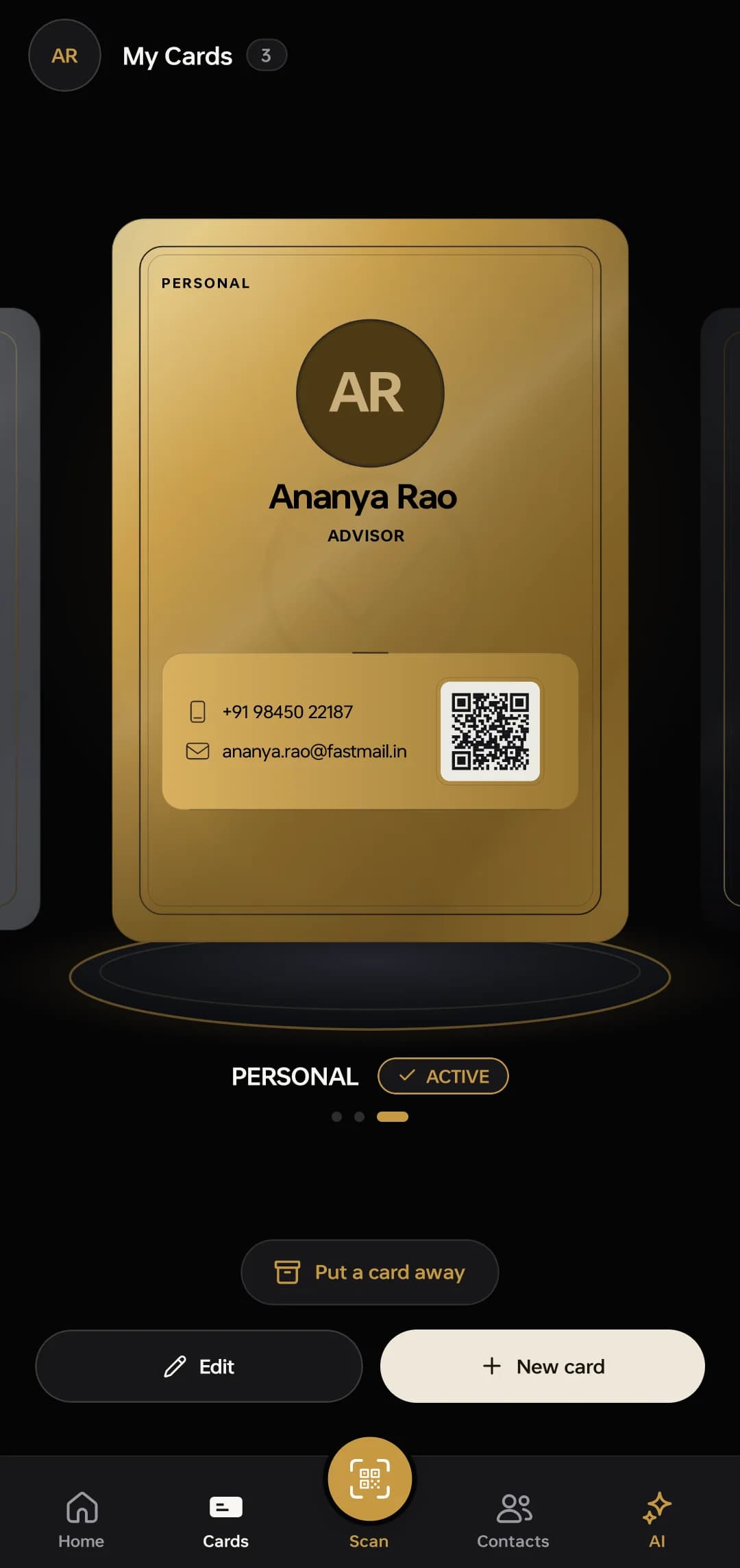
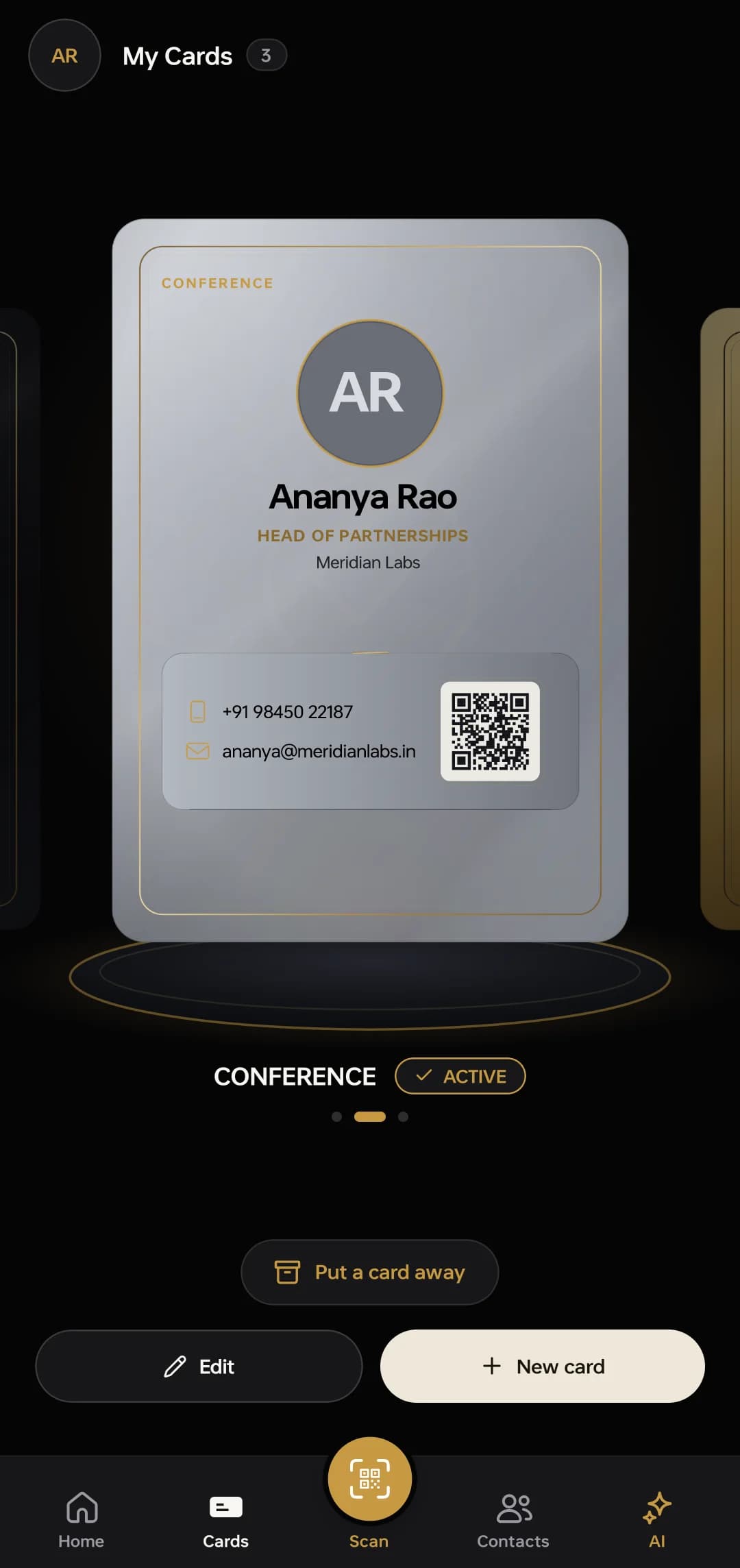
A card is built on one of three materials — Obsidian, Gold and Platinum. They change the plate the card is printed on and nothing else: every material carries the same fields, the same QR code and the same link.
The material is chosen when the card is made and can be changed later from the card editor. Cards sit in a carousel in the wallet; swipe, or use the arrows, to move between them.
What goes on a card
A card has an identity block — photo, name, what you do, company, logo — and then groups of contact rows: phone numbers, email addresses, websites, social profiles, an address.
- The card face shows two rows. The first row of each of the first two groups. That is a design constraint, not a storage one — everything else is on the card’s web page, one tap away.
- Groups reorder by dragging. The order you see in the editor is the order the page renders, so what you arrange is what a stranger reads.
- Rows of the same kind stay together. You cannot interleave two phone numbers with an email; the editor keeps each kind contiguous so the page never comes out jumbled.
Give each card a label — Work, Conference, Personal. The label is shown under the card in your wallet so you can tell three cards apart at a glance, and it is not printed on the card itself.
The public link
Every card has a permanent web address. It is the card.
A card’s address looks like objectivedone.com/t/<slug>, and the slug never changes. It cannot be changed, by you or by us, because those addresses get printed on paper and written into NFC tags that cannot be rewritten afterwards.
Anyone with the link can open the card. There is no sign-in, no app required and nothing to install: it is an ordinary web page that renders fresh on every open, so an edit you make today reaches everybody you handed the card to last year.
A real one
This is a live card, not a mock-up: objectivedone.com/t/kpga4fbj. Its Save contact button downloads the same contact file the app shares.
The card page also offers share back — a short form the reader can fill in to hand you their own details. Where those go is covered under When someone shares back.
The QR code
The QR on the card front encodes the card’s own link and nothing else. Scanning it with any camera opens the card page; scanning it with Connect adds the person as a contact directly.
- Tap a card in the wallet to flip it to its QR and its actions.
- The QR can be put on your phone’s home screen as a shortcut, so handing your card over is one tap from the lock screen.
- Because the QR is the link, and the link is permanent, a printed QR does not expire when you change job title — you edit the card and the printed code still resolves.
NFC tags
Connect writes a card’s link to an NFC tag, so tapping a phone against the tag opens the card. Any standard NDEF tag works — a sticker, a card, a keyring.
A tag holds the link, not the card, which is the point: the contents of the tag never need to change. Writing is available on Android today.
Wallet passes
Adding a card to Apple Wallet or Google Wallet is built, and it is waiting on issuer accounts rather than on engineering — Google Wallet is closed to India-registered businesses and Apple requires a certificate. This is stated here because it is the honest position, not a roadmap promise.
Pausing a card, and putting one away
Two different things, and they behave differently.
- Pausing is your own decision. A paused card’s link stops working until you turn it back on. Everything about the card is kept, including its slug, so the printed copies start working again the moment you un-pause it.
- Putting a card away takes it out of your live set without deleting it. It is how you stay inside the free limit of five live cards when you want a sixth. A card that is put away also stops answering its link.
Neither one destroys anything. Both are reversible from the wallet, and a card that comes back comes back exactly as it was rather than being rebuilt.
How many cards can be live
Five, on the free plan. Not unlimited.
A free account keeps five cards live at a time. Making a sixth asks you to put one of the five away first. Premium removes the ceiling.
The limit is enforced by the database rather than by the app’s New card button, so it holds however a card is created. If a paid period ends while you have more than five live, the app parks the extras — most recently used first — and nothing is deleted; renewing restores exactly what was parked, and your own pauses are left alone because those were your decision and not ours.
Building your network
Scanning a paper card
Photograph it, check it, save it.
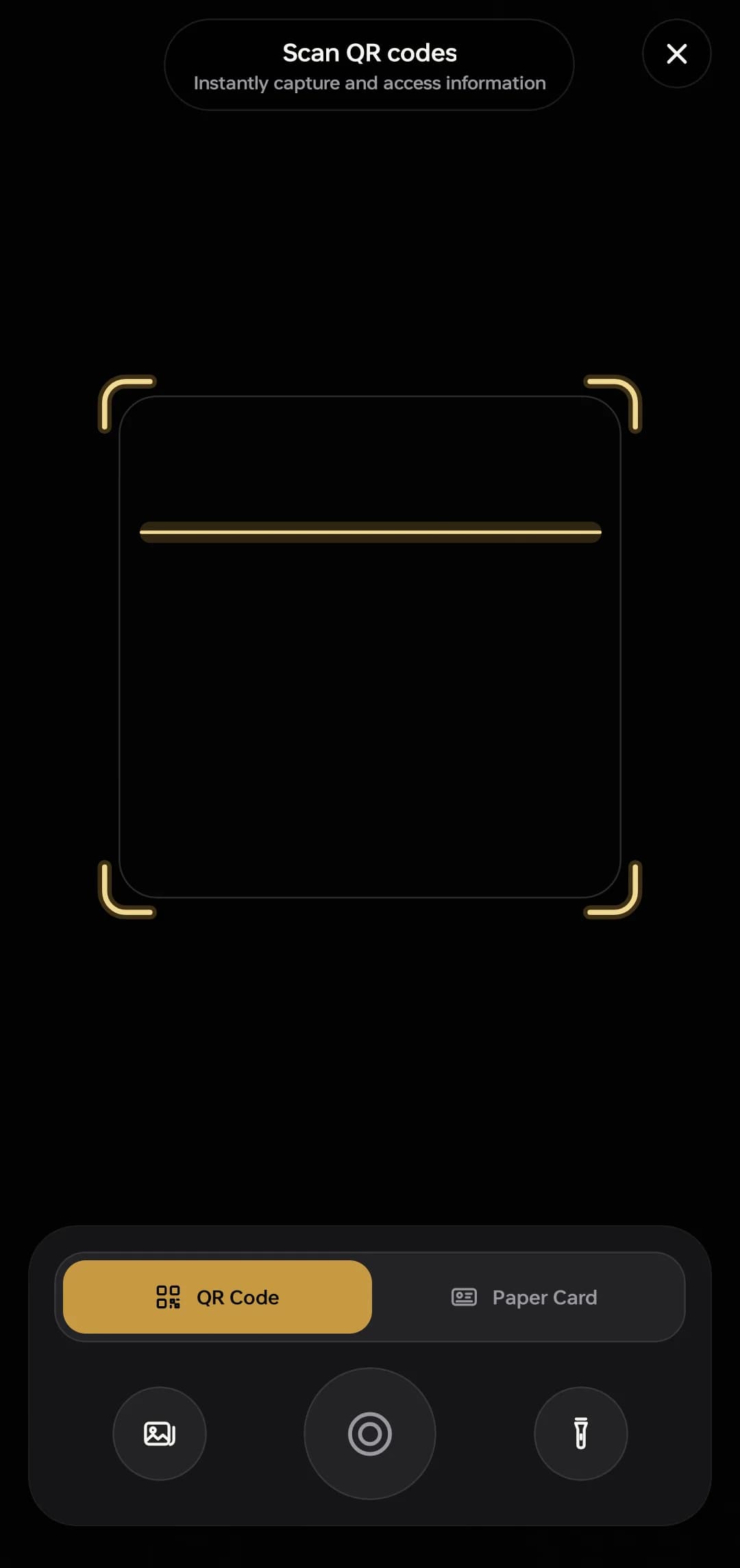
Open Scan, switch the toggle to Paper Card, fill the frame with the card and take the shot. The name, company, title, department, address, phone numbers, email addresses, website and social handles read themselves into the normal contact form, where you check them before saving.
What is read where
This split is deliberate. Phone numbers, emails, websites and social handles are extracted on your device and are never sent anywhere — a model can only corrupt a phone number, so nothing gets the chance to. Only the judgement fields — name, company, title, department, address — go to the server, and the server sees the text and the layout, never the photograph. Any value it returns that does not appear in the text read off the card is dropped.
It will get something wrong sometimes; reading print from a photo is never perfect. Everything lands in the editor before it is saved, so it is a correction rather than a re-typing. Good light and filling the frame help more than anything else.
The free allowance
Free accounts read three cards a day. Premium reads three a day too, then draws on a weekly AI allowance that renews every Monday. Scanning a QR code is free and unlimited on every plan — it costs us nothing, because nothing is read by a model.
Scanning a QR code
Open Scan and point the camera. An ObjectiveDone card becomes a contact; any other QR code is decoded and handed to your phone as it normally would be.
You can also scan a code from a photo already in your gallery — the picture button beside the shutter — which is how you deal with a code somebody sent you in a chat.
Importing contacts
Contacts → Import brings people in from your phone book, from a CSV file, or from a vCard. Duplicates are detected on the way in rather than after the fact.
- From your phone book. Google Contacts sync into your phone’s address book, so they arrive through this route. If they are missing, check that the account is syncing in your phone’s own Settings → Accounts.
- From a file. A CSV or a vCard exported from anywhere else.
- It is an import, not a sync. Nothing is written back to your phone book, and nothing keeps the two in step afterwards. There is no Google Contacts or Outlook two-way sync.
When someone shares back
Their details wait for you to accept them.
Anyone looking at your card page can fill in a short form with their own details. Those arrive as a share-back, and they wait for you to review them — a stranger can never write straight into your address book.
Share-backs appear on Home and in Contacts, in the share-back tray, and they stay there until you accept or decline them. Dismissing the notification does not lose them.
Contacts and memories
The address book
Every contact you have, however it arrived. Search across the whole book, sort it, and filter by tag or by how the person got there — scanned, imported, typed in, or handed over through a card.
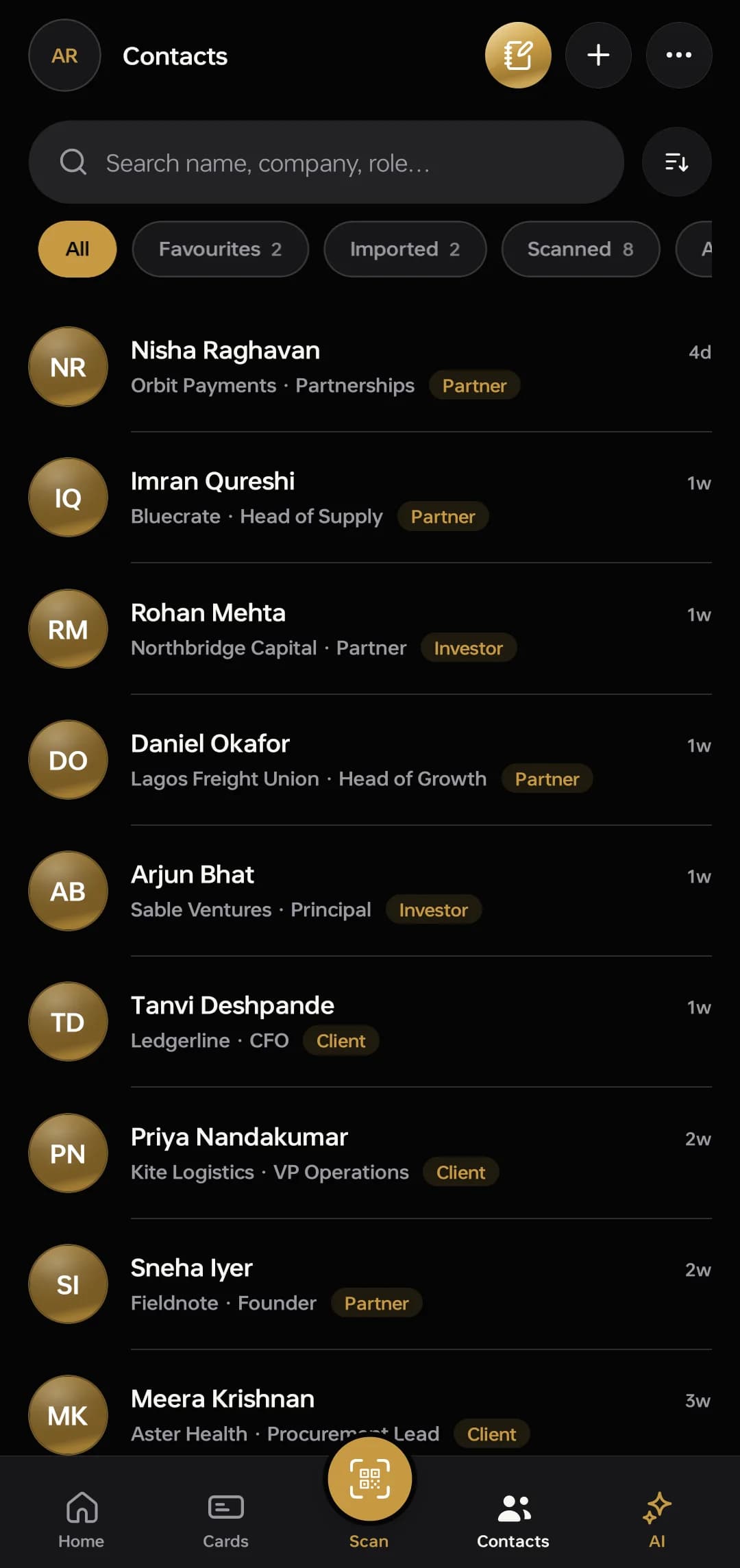
The filter pills reorder by dragging: hold one and release without moving to run it, hold and move to put it somewhere else. From a contact record you can call, message on WhatsApp, email, or open the address on a map, and you can share the contact out as a contact file.
There is no cap on contacts
Contacts, tags, importing and exporting are free on every plan and are not metered. The paid features are card reading beyond the daily allowance, turning voice notes into text, and the Concierge.
Notes and tags
Every contact carries a free-text note — the thing you would have written on the back of the card. Tags are for the things you want to filter by later: an industry, a city, an event, a stage.
Both are yours alone. Notes and tags are private to your account and are protected by the database itself, not by which screens we chose to build.
Memories — the date, the place, the occasion
The part that makes a contact worth having in three months.
A memory is one thing that happened with this person, and it can carry four things around it: a date, a voice note, a place, and an occasion. You add whichever ones are true — a memory with only a sentence in it is still a memory.
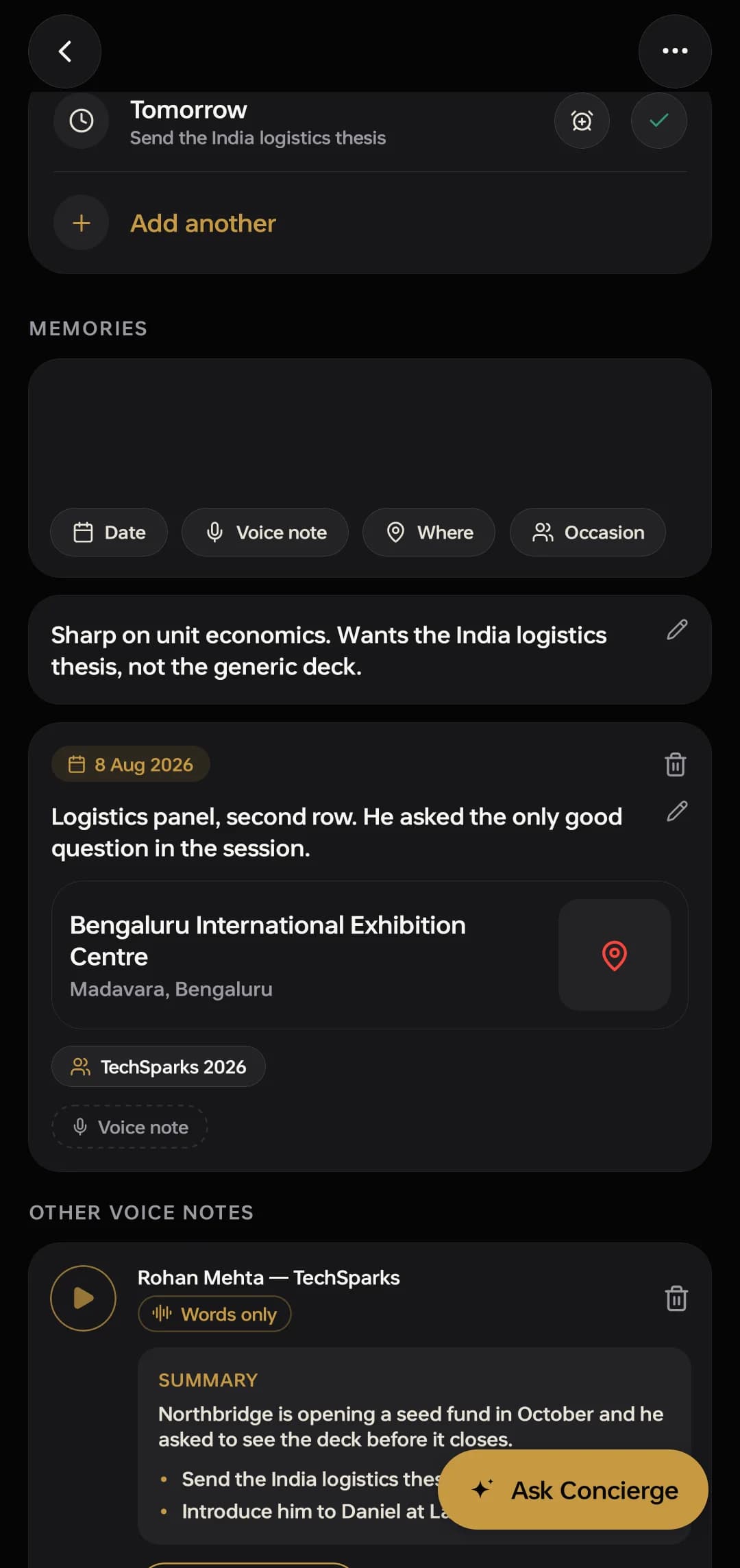
- Where is a real place, with its address, and it opens in your map app.
- Occasion is the event or the context — a conference, a wedding, an office visit — and it is what the Concierge matches on when you ask “who did I meet at…”.
- Date is when it happened, not when you typed it. A memory added a week late still sits in the right place.
Voice notes, transcripts and summaries
Record a voice note against a contact, or open the recorder for a meeting that is not about one person. Both end up in the same history, searchable by title, transcript, summary or contact name, and filterable by where they came from.
Recording is free. Turning it into text is the paid part.
Nothing transcribes on its own. A transcript is a model call, so it is offered per recording and only happens when you ask for it. What you get back is the words, a summary, and a list of action items pulled out of what was said.
| Free | Premium | |
|---|---|---|
| Length of one take | 60 seconds | 2 hours |
| Total audio stored | 60 minutes | No cap |
| Transcript, summary, action items | Not included | Included |
The free cap is enforced while you record, not afterwards: a take that reaches 60 seconds stops and saves, so you keep what was captured and are shown the plan. The stored total refuses to start a new take rather than refusing to keep one — being told after the fact that your words were wasted would be indefensible.
A recording is two independent things, the audio and the words, and either can be deleted on its own. Deleting the audio and keeping the transcript gives back the storage it was using and leaves the words — the row is marked Words only in the list.
Finding someone again
Search in Contacts covers names, companies, roles and notes. Recording history is searched separately, across titles, transcripts, summaries and the contact a memo is attached to.
When you cannot remember enough to search for it, that is what the Concierge is for — it takes the question in the shape you actually remember it.
Getting your data out
- Profile → Export contacts gives you a spreadsheet of everything in your address book.
- Any single contact or card can be shared as a contact file, which every phone and every mail client understands.
- For a full copy of your account, write to support@objectivedone.com.
Export is free on every plan. If you are deleting your account, export first — Profile → Delete account asks for your password and confirms once more, and it cannot be undone.
The Concierge
What it can answer
Questions about your own contacts, answered from your own records.
Ask in plain language — who did I meet at TechSparks and what did I promise them, who have I not followed up with, what did Rohan want. The answer is assembled from your contacts, your notes, your memories and your transcripts, and it lists the records it used so you can open them.
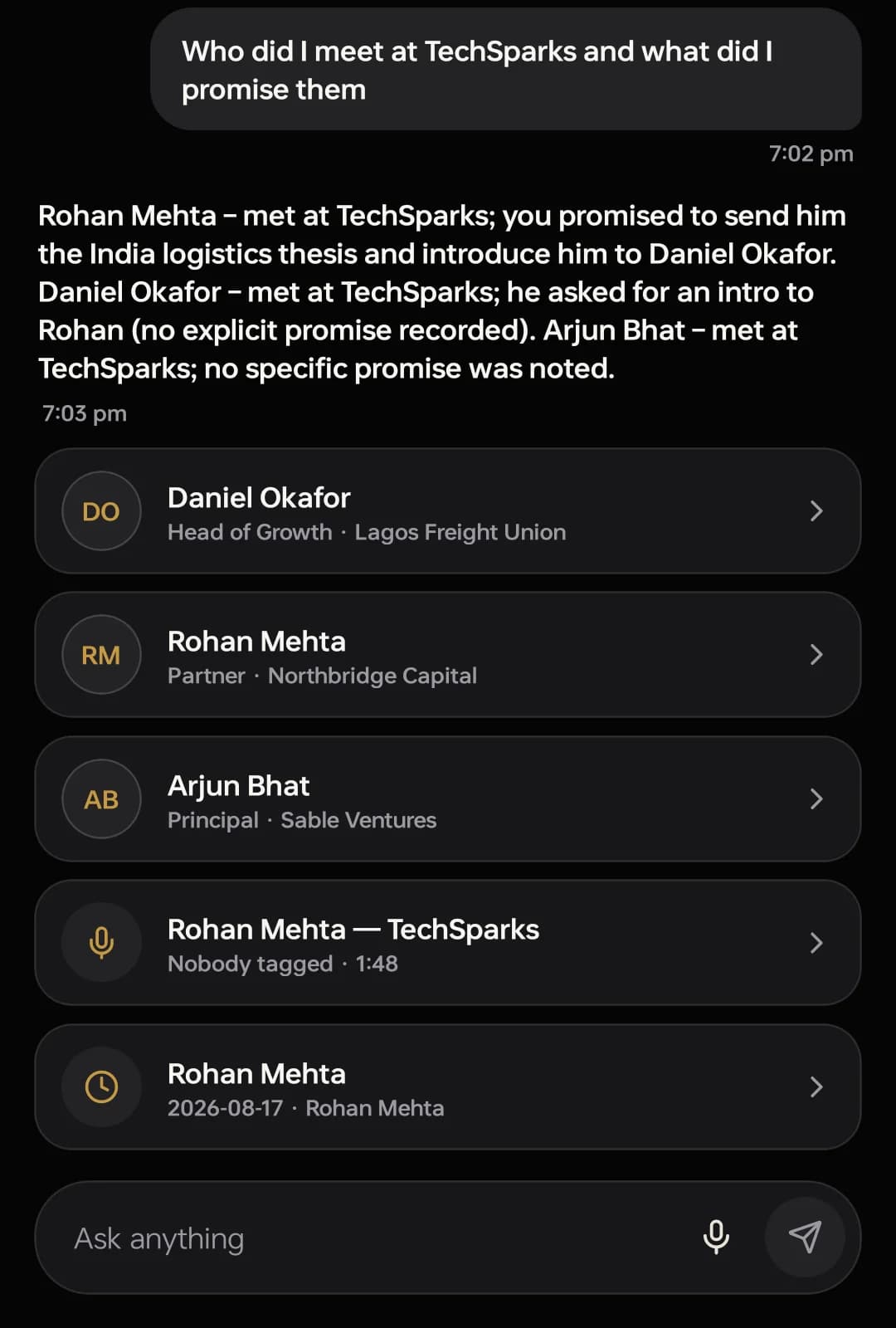
You can speak the question instead of typing it. Dictation records and then transcribes; there is no live word-by-word partial, which is a design decision rather than a gap — one speech pipeline is reused for both dictation and voice notes.
Your contacts are read under your own sign-in, so the Concierge can only see what you can see. It is a paid feature.
What it will not do
- It does not invent an answer. If your notes do not contain what you asked for, it says so — in the screenshot above, “no explicit promise recorded” is the honest answer for one of the three people, and it is the behaviour being demonstrated rather than an accident.
- It does not read anybody else’s records. Not other members’, and — if you are in a CRM — not the organisation’s, unless you ask it inside the CRM where it answers from what your role can already see.
- It does not search the internet. Everything it says comes from what you captured.
- It is assistive, not authoritative. Card reading, transcription and the Concierge are all models. Check anything that matters.
There is no API for it
The Concierge is an interface inside the app. There is no MCP server and no endpoint an outside agent can call. See What connects to what.
Reminders and notifications
Follow-ups
Two taps, and the phone buzzes even with the app closed.
Set a follow-up on any contact: This evening, Tomorrow morning, In a few days, Next week, with an optional note. Presets rather than a date picker, because the real intent is usually “soon” and a date-and-time wheel costs five taps to say tomorrow.
Due and overdue follow-ups are the top of Home, with one-tap Done and Snooze. You can also complete or snooze one from the contact, or straight from the push notification.
Why a reminder can be a few minutes late
Your phone never schedules anything. Our server checks for due reminders every few minutes and sends them — which is exactly what lets one arrive when the app has been closed for a week, or when you have changed phone since setting it. Expect it within about five minutes of the time you set. Each reminder announces once; snoozing moves the time and it announces again.
What buzzes and what does not
There is a notification centre in the app with an unread badge, and real lock-screen push for the things that are worth interrupting you: a reminder falling due, a share-back arriving.
- Your own actions never buzz you. The device that caused an event is skipped, so completing a reminder on your phone does not push a notification to that same phone. It is still recorded in the feed.
- Some things are recorded and never sent. Low-priority entries land in the notification centre and deliberately never leave the app.
- Badges update when you open the app, not over a live socket. Refetching when a screen comes into focus is enough and costs no connection.
The CRM
Your workspace
A separate product, sold to the organisation.
The ObjectiveDone CRM is a multi-tenant sales system built for the phone of the person doing the selling. An organisation buys it; its members sign in with the same ObjectiveDone account they already have.
- Organisations are created by us, with the number of seats agreed in the conversation. There is no self-serve signup and no checkout.
- Your admin invites the team from inside the app.
- It is white-labelled. Your organisation’s name, logo, one accent colour and your own email sender. Connect stays ObjectiveDone-branded, because it is a personal app and pretending otherwise would be dishonest to the person holding it.
- One database, one tenant’s rows. An organisation’s records are invisible to another organisation by the database’s own rules.
- The price is not published. It is agreed against the size of the team. Write to support@objectivedone.com.
The CRM is also available in a browser at crm.objectivedone.com. Bulk work a phone is bad at — CSV import with column mapping, wide dashboards — is planned for that surface rather than built today.
Leads
A lead is interest before it is qualified. It can be typed in, pushed across from someone’s Connect address book, captured by a card’s share-back form, or posted in from a website form or an ad platform.
- Qualify it, convert it to a deal, or drop it — and the reason for dropping it is kept, because that is the number worth reporting on.
- A dropped lead can be reopened.
- Leads carry tags, an owner and the whole conversation record, including any voice note that came across with them from Connect.
Personal contacts stay personal
A member’s Connect address book is theirs. The only door between it and the CRM is an explicit action by that member — they send a contact across, and it copies the record with a note of where it came from rather than moving it. Nothing crosses on its own, in either direction, and the CRM cannot read anybody’s personal book.
Pipeline and deals
A board you drag deals across, and a list you can search, sort and filter. Every stage column carries its count and its total value.
- Five stages are seeded for a new organisation and the admin renames them. Stage colours are the admin’s too.
- A stage cannot be deleted while deals are in it. Point them somewhere else first — a delete that silently orphans deals is how a pipeline total goes wrong quietly.
- Long-press and drag moves a deal between stages; long-press without dragging opens the quick actions.
- WhatsApp, call and email are one tap from the deal.
- A deal has people. Who it is with and its People list are one fact in both directions, so adding somebody to one adds them to the other.
A deal can carry a public status link — off by default, switched on per deal — showing the current stage and the next step in wording the admin controls. It is the one CRM surface a customer of yours can open without an account.
Activities and tasks
Grouped as Overdue, Today, This week and Later. A task is a commitment to a person, so it has an owner and a date: the assignee is chosen when it is created, and theirs is the phone that buzzes.
Completing a task is an event the rest of the system can see — it shows in the activity feed, it counts in reporting, and it can fire a webhook.
Reports
- Open pipeline value, deals by stage, win rate, overdue count and the activity feed, over any date range.
- For org admins, the same figures per member.
- The pipeline can be replayed as it stood on a past date — what the board looked like at the end of last quarter, rather than what today’s board says about last quarter.
- Anything on the screen can be exported as CSV.
A sales member sees their own numbers. That is not a filter on the screen; it is the same boundary the records themselves have.
Members and roles
| Role | Sees | Can also |
|---|---|---|
| Sales | Their own leads, deals and tasks, and their own numbers | Create and work their own records. The assistant answers from what they can see and nothing else. |
| Org admin | Everything in the organisation | Reassign records between people, invite members and see seat usage, rename pipeline stages, read org-wide and per-member reporting, and change the organisation’s settings and branding. |
| Us | Nothing | Platform staff hold no membership in your organisation, so a query against your pipeline returns no rows. |
“Sees own records” is enforced where the data is, not in the interface — which is the difference between a permission and a preference. It holds whether a member is using the app or calling the API directly.
Not built yet
The list we would rather you read now than discover later.
- Billing and payment. Seats are set by us when the deal is made. There is no checkout, no invoice screen and no metering interface.
- Self-serve signup. Organisations are created by us; your admin invites the team from inside the app.
- The desktop surfaces. CSV import with column mapping, bulk operations at desk density and the wide dashboard are the web CRM, and it is planned rather than built.
- iOS. The code is written cross-platform and the readiness work is written down. The build in use today is Android.
Developers
What connects to what
Four things that exist, and a list of what does not.
There is no logo wall here. The integration surface is small on purpose, it speaks ordinary webhooks in both directions, and that is exactly what Pabbly Connect, Zapier, Make, n8n or a server you wrote yourself already consume. Nothing in the code is specific to any of them.
| Surface | What it is |
|---|---|
| Webhooks from Connect | Your own account’s events to your own HTTPS endpoint. Signed, retried and logged. Five endpoints per account. The events |
| Webhooks from the CRM | Ten organisation-scoped events, plus a test. Admin-only, per workspace. The events |
| Leads into the CRM | A capture URL that turns any POST into a lead, matching field names liberally. How it works |
| Import and export | Contacts in from your phone book, a CSV or a vCard; out again as a file, whenever you want. Import · Export |
What you will not find
- No app in the Zapier or Make directory. There is no ObjectiveDone tile to search for. You use their built-in Webhook trigger and their generic HTTP action — which means you map the fields yourself the first time, and also means it works identically with n8n, with Pabbly, and with a server you wrote.
- No MCP server. There is nothing to point an AI agent at.
- No published API for reading your data. Webhooks push events out; there is no documented endpoint to query for a list of your contacts. Anything that needs the whole book uses the export file.
- No Google Contacts or Outlook sync. Import is a one-way route in.
- No calendar integration. Reminders live in the app and reach your lock screen. Nothing is written into your calendar and nothing reads it.
- No direct Slack, WhatsApp or email actions. The webhook is the seam: point it at the automation tool you already pay for and let that send the message.
All of that is honest as of today and none of it is a roadmap promise. If the thing you need is not on the list, that is the useful email to send: support@objectivedone.com.
Webhooks
Signed, retried, and logged. Every event is a row before it is a request.
An event becomes a row first and is posted afterwards, so a receiver that was down for ninety seconds gets the lead rather than losing it. Every delivery carries an HMAC-SHA256 signature over the body, because a webhook nobody verifies is a URL that anyone who guessed it can post to.
The two products sign differently
Connect signs the exact body. The CRM signs <timestamp>.<body> and sends a delivery id. They were built four weeks apart for different scopes — Connect’s endpoints are personal, the CRM’s are organisation-scoped — and blurring them into one “our webhooks” section would produce a page that fails on first use.
Connect · your own account’s events
| Event | Fires when |
|---|---|
contact.created | A contact is saved, however it arrived — typed, scanned, imported, or approved from a share-back. |
contact.updated | Only when the name, company, designation, email or phone changed. A retag does not fire it, which is what stops a bulk edit becoming a thousand deliveries. |
share_back.received | Somebody filled in the form on your card page. Fires when it arrives, not when you approve it. |
recording.transcribed | A voice note finished transcribing. Fires on the edge into done, not on every touch of a finished recording. |
The endpoint form also accepts reminder.due and card.viewed. Neither has anything emitting it yet, so subscribing to them today delivers nothing at all. They are listed here because they are listed there, and a configuration screen that accepts an event it will never send is worse than one that does not offer it.
{
  "event": "contact.created",
  "sentAt": "2026-08-15T09:12:44.108Z",
  "data": {
    "id": "9f2c…",
    "fullName": "Rohan Mehta",
    "company": "Northbridge Capital",
    "designation": "Partner",
    "email": "rohan@example.com",
    "phone": "+91…",
    "source": "scan",
    "metAt": "TechSparks, Bengaluru"
  }
}
data is the record that changed. A contact.created carries id, fullName, company, designation, email, phone, source and metAt. A recording.transcribed carries id, title, durationSec, transcript, summary and actionItems.
Content-Type: application/json
User-Agent: ObjectiveDone-Webhooks/1
x-objectivedone-event: contact.created
x-objectivedone-signature: sha256=<hex>- A sweep runs every minute and posts what is due. Any 2xx is success; the request times out at five seconds.
- Failures retry at 1, 5 and 25 minutes, then stop. Three tries covers a restart or a brief outage; a fourth is a slower way of finding out the URL is wrong.
- Every attempt is in a delivery log you can read and cannot edit — evidence a customer can change is not evidence.
- Five endpoints per account, HTTPS only. A failing webhook can never fail the thing that caused it: your contact saves either way.
- There is a Send test button, and it queues a real
contact.createdthrough the same code path, so a test that passes is evidence about the real thing.
The CRM · organisation events
| Event | Fires when |
|---|---|
crm.lead.created | A lead is captured, however it arrived. |
crm.lead.converted | Its status changes to converted. |
crm.lead.dropped | Its status changes to dropped. |
crm.lead.reopened | A closed lead comes back. |
crm.deal.created | A deal is opened. |
crm.deal.stage_changed | It moves column. |
crm.deal.won | It is closed won. |
crm.deal.lost | It is closed lost. |
crm.task.completed | A task or activity is completed. |
crm.contact.created | Someone joins the organisation’s address book. |
crm.test | You tapped Send test. |
{
  "event": "crm.deal.won",
  "org_id": "1ef5b8ef…",
  "occurred_at": "2026-08-11T10:22:31.114Z",
  "data": {
    "id": "…",
    "title": "40ft container · Q4",
    "value": 250000,
    "stage_name": "Closing",
    "outcome": "won",
    "owner_id": "…"
  }
}x-objectivedone-event: crm.deal.won
x-objectivedone-delivery: <delivery id>
x-objectivedone-timestamp: <ISO instant>
x-objectivedone-signature: sha256=<hex>- Selecting no events means every event. Enqueued in the same transaction as the change, so a rolled-back deal never announces itself.
- Retries at 1, 5, 25… minutes, giving up after six attempts — twice Connect’s ladder, because an organisation’s automation is somebody’s working day.
- A URL that is not
https://, or that resolves to a private, loopback or link-local address, fails immediately and permanently. It is a typo or a request-forgery attempt, and neither improves with time. - Endpoints are admin-only, enforced by row security rather than by hiding a button: the row carries the signing secret, so a sales member gets no rows at all.
x-objectivedone-deliveryis your idempotency key.
Verifying a signature
Twelve lines, and then you can trust it.
Without this check, anyone who guesses or is shown your endpoint URL can post a fake contact into whatever you wired it to. The secret is shown once, when the endpoint is created, and never again — losing it means rotating it, which is one button and the honest cost of not storing it somewhere it can be read back.
import { createHmac, timingSafeEqual } from 'node:crypto';

// Connect signs the RAW body. Read it before any JSON parser
// touches it, or the digest will not match.
export function verify(rawBody, header, secret) {
  const sent = String(header || '').replace(/^sha256=/, '');
  const mine = createHmac('sha256', secret)
    .update(rawBody, 'utf8')
    .digest('hex');

  const a = Buffer.from(sent, 'hex');
  const b = Buffer.from(mine, 'hex');
  return a.length === b.length && timingSafeEqual(a, b);
}const signed = `${req.headers['x-objectivedone-timestamp']}.${rawBody}`;
const mine = createHmac('sha256', secret).update(signed, 'utf8').digest('hex');- Compute the digest over the exact bytes you received. A JSON parser that reformats the body changes the digest.
- Compare with a timing-safe comparison, not
===. - Verification is optional and worth doing. Pabbly does not require it; your security review will.
Inbound lead capture
A POST from anywhere becomes a lead in the CRM.
The other direction: a lead ad, a marketplace enquiry, a website form or an automation step, arriving as a lead in the organisation’s inbox instead of being retyped by somebody. Create the capture URL at Workspace → Integrations → Create a capture URL, then POST to it.
Send a flat JSON object, or form-encoded — both are accepted. Keys are matched case-insensitively and the first one present wins, so in most cases the source app’s own field names pass straight through with no mapping step.
| Lead field | Accepted keys |
|---|---|
| name | name, full_name, fullName, contact_name, customer_name, lead_name, or first_name + last_name |
| company | company, organization, organisation, company_name, business |
| title | title, designation, job_title, role |
| phone | phone, mobile, phone_number, contact_number, whatsapp |
email, email_address, emailAddress | |
| notes | notes, message, comments, enquiry, requirement, description |
A payload with no name at all still becomes a lead, named by its email or its phone. A web form that collects only an address is a real enquiry, and dropping it would lose business.
Idempotency — read this before going live
Every one of these tools retries. Pass an id and a retry is a no-op — ?external_id=… in the query string, or any of external_id, id, lead_id, leadgen_id, event_id, entry_id, submission_id in the body. Without one, a single retried lead becomes two leads and the organisation’s conversion rate is quietly wrong.
| Status | Body | Meaning |
|---|---|---|
| 200 | {"ok":true,"lead_id":"…","duplicate":false} | Created. |
| 200 | {"ok":true,"duplicate":true} | Already had it. Do not retry. |
| 200 | {"ok":false,"ignored":"endpoint_disabled"} | Switched off in the CRM. Deliberately not an error. |
| 401 | UNKNOWN_ENDPOINT | Wrong or rotated URL. |
| 409 | NO_ACTIVE_OWNER | The workspace has no active admin to own the lead. |
| 413 | TOO_LARGE | Body over 64 KB. |
- Captured leads land in Leads → Open, owned by the endpoint’s default owner or the first active admin, with the endpoint’s default tags.
- Every POST is recorded whether or not it produced a lead — “we sent it” against “we never got it” is the argument that log exists to settle.
- The capture URL contains a token and it is a credential. It can create leads in one workspace and read nothing at all. Generating a new one invalidates the old immediately, which breaks live automations on purpose.
Answers
Your card, and handing it over
Who can see my card?
Anyone you give the link to. Every card has a permanent web address, and the QR on the card front is that address, so scanning it, tapping a shared link, or opening the page all show the same card.
You can pause a card from the wallet. A paused card’s link stops working until you turn it back on.
Someone shared their details back, where did they go?
Share-backs wait for you to review them, so a stranger can never write straight into your address book. They appear on Home and in Contacts under the share-back tray, and they stay there until you accept or decline them — a dismissed notification does not lose them.
Contacts and the scanner
The card scanner got a field wrong.
It happens; reading print from a photo is never perfect. Everything it reads lands in the normal contact editor before saving, so you can fix it there. Good light and filling the frame with the card help most.
How do I import contacts from Google?
Google Contacts sync into your phone’s address book, so they come in through Contacts → Import → Phone book & Google. If they are missing, check the account is syncing in your phone’s Settings → Accounts.
Reminders and notifications
Why did my reminder arrive a few minutes late?
Reminders are sent by our server, which checks for due ones every few minutes. That is what lets them arrive with the app closed. Expect it within about five minutes of the time you set.
Privacy, and getting your data out
The full detail is in the privacy policy. These are the three questions people actually ask.
Who can see my contacts and notes?
Only you. Contacts, notes, voice notes and reminders are private to your account and are protected by the database itself.
Our support staff can access account data when helping you or investigating abuse; the privacy policy says exactly what that covers.
How do I export my data?
Profile → Export contacts gives you a spreadsheet of everything in your address book. Any single contact or card can also be shared as a contact file. For a full copy of your account, write to us.
How do I delete my account?
Profile → Delete account. It asks for your password and confirms once more before anything is erased, because it cannot be undone.
Export your contacts first if you want to keep them: Profile → Export contacts.
Plans and the CRM
What is free and what is paid?
Free: your cards — five live at a time — sharing them, contacts, importing, exporting, QR scanning, reminders, notifications, three card reads a day, and recording voice notes up to 60 seconds a take with 60 minutes kept.
Paid: reading business cards from a photo beyond the free daily allowance, turning voice notes into text with summaries and action items, the AI Concierge, and recordings up to two hours a take with no stored cap.
How do I get Premium?
You tell the app you are interested and we get in touch. There is no checkout: no card, UPI or bank detail is ever entered into the app, we agree the price and the term with you, and the plan is switched on for your account by hand.
Nothing renews on its own. When a paid period ends, access returns to the free features and your cards, contacts, notes and existing transcripts stay exactly where they are. The price is on this website and nowhere else — see pricing and the refund and cancellation policy.
Is the CRM included in my Connect plan?
No. ObjectiveDone’s CRM is a separate product, bought separately by the organisation that uses it. Paying for Connect does not include it, and having a CRM seat does not include Connect.
They do share one sign-in, and you can send a contact from Connect to a CRM you belong to — that copies it rather than moving it, and your personal contacts stay personal unless you choose to send one.
Your account and the app
Why can I only be signed in on one phone?
An account is one person. Signing in on a new phone moves the account there and signs the old one out. Nothing is lost — everything is on the new phone as soon as you sign in.
Does it work without internet?
It opens, and your own cards are there so you can still show one. Anything that needs the server — loading contacts, saving, scanning, the Concierge — waits until you are back online and says so plainly.
How do I get updates?
The app tells you. Connect is not on an app store, so it checks with us when it opens: if there is a newer build, you get a note saying what changed, and tapping Update downloads and installs it.
The first time, Android asks whether to let Connect install apps. That permission is Android’s, not ours, and it is asked because the app did not come from a store. If you would rather not grant it, the same sheet offers to open the download in your browser instead.
You can also check whenever you like: Profile → Check for updates.
Something is broken.
Tell us: support@objectivedone.com. What you were doing and what you saw instead is enough to start; a screenshot helps.
Profile → Submit feedback opens a mail with your app version and phone already filled in, which saves us asking.